iOS Screenshot Maker
Built for iOS developers who'd rather ship than push pixels: drop in simulator captures, get framed, captioned iOS screenshots for every iPhone and iPad size.
- Works with Xcode simulator captures
- Realistic iPhone & iPad frames
- Light and dark styles
Before · your raw screenshots
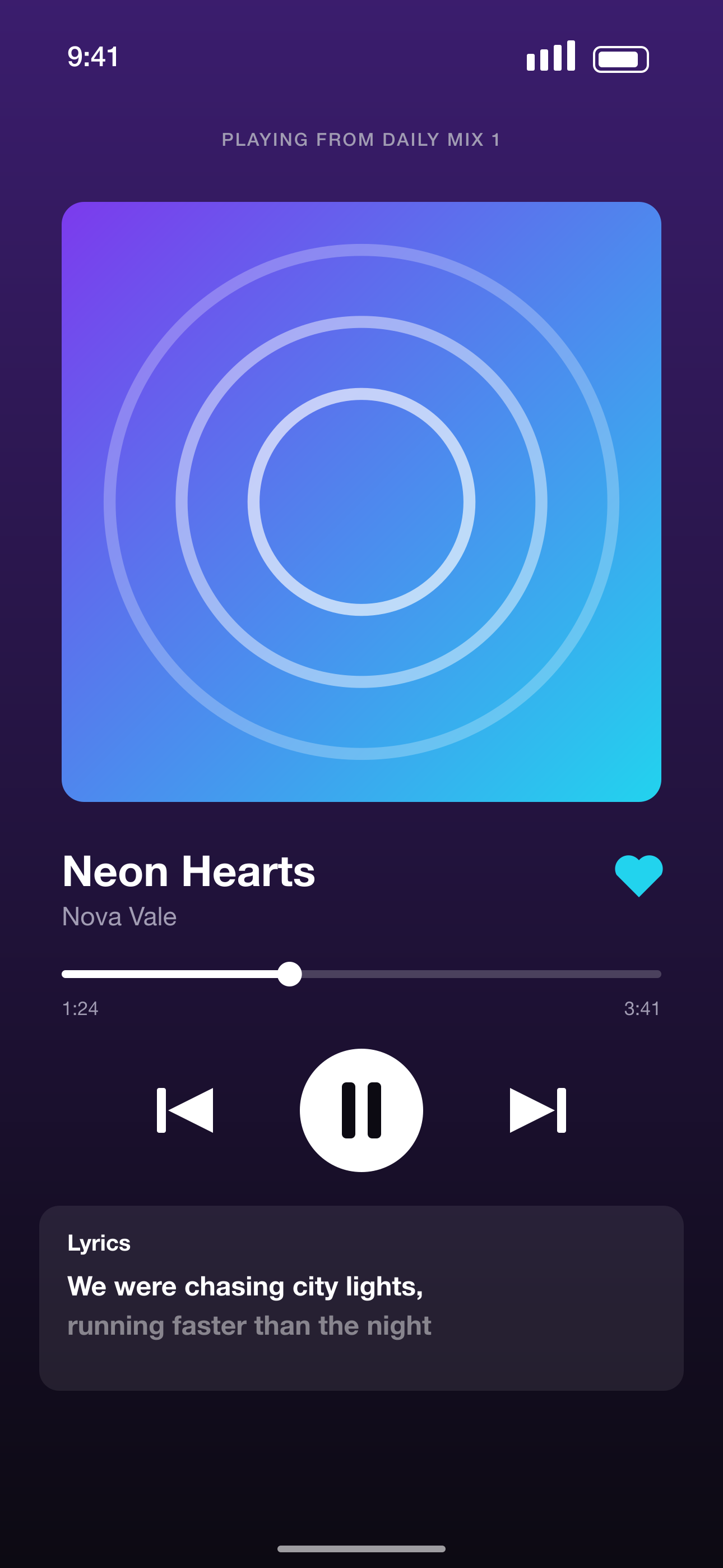
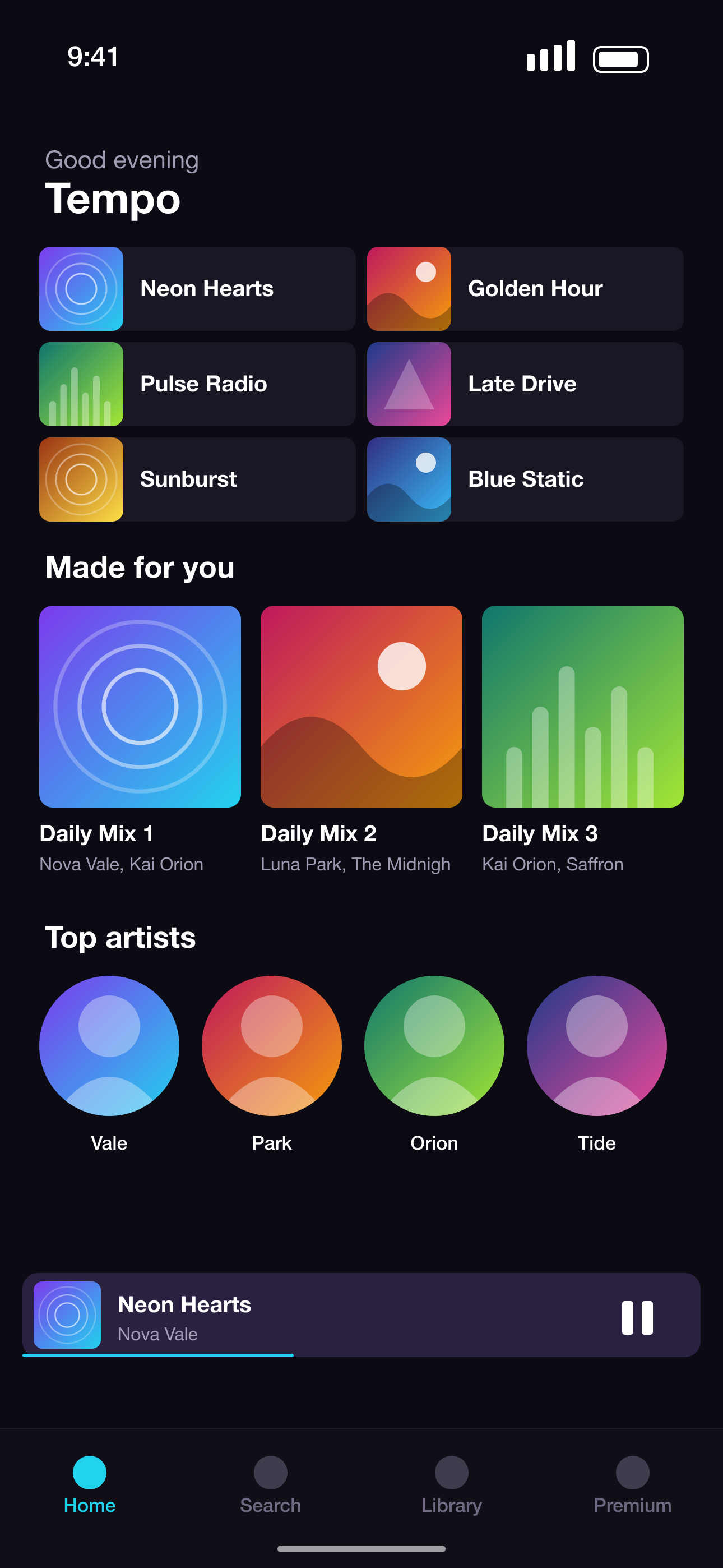
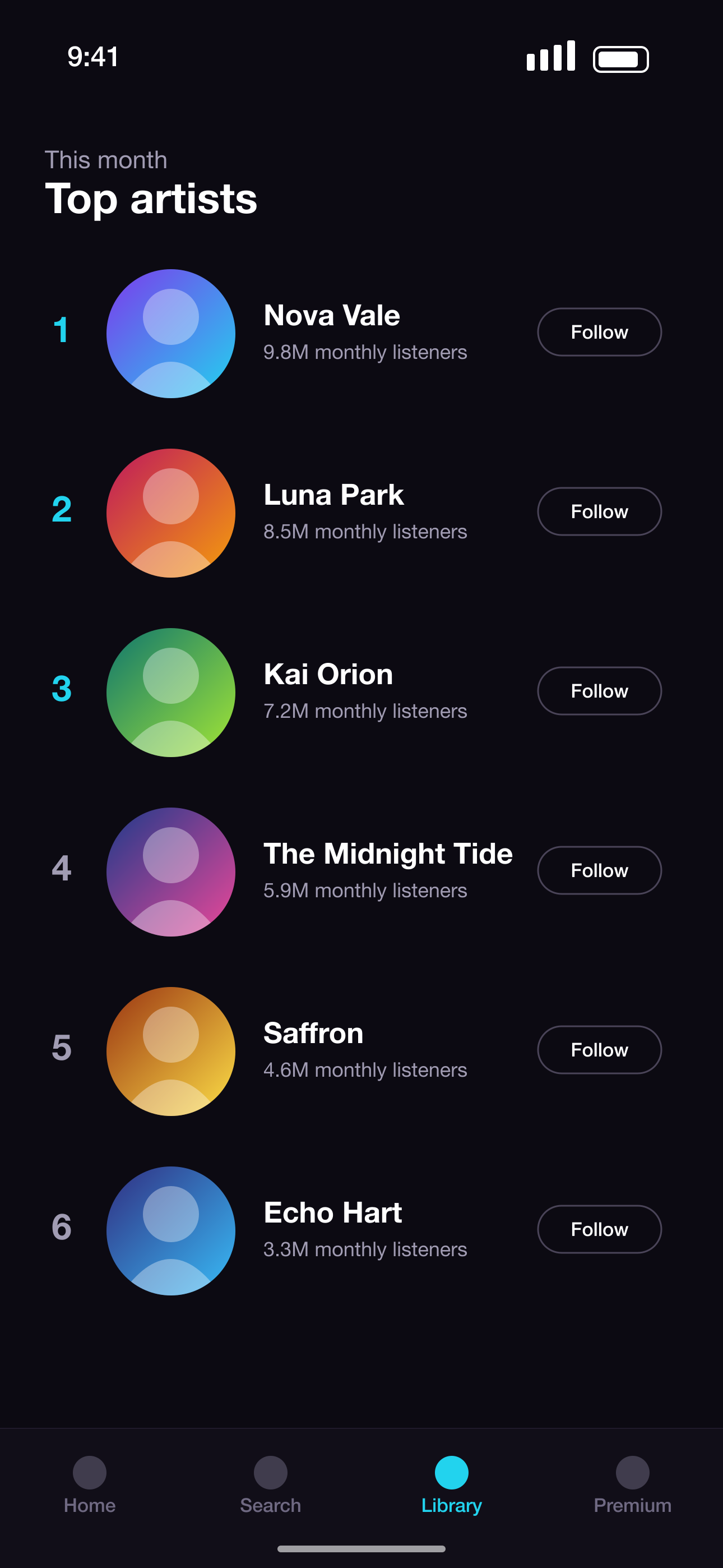
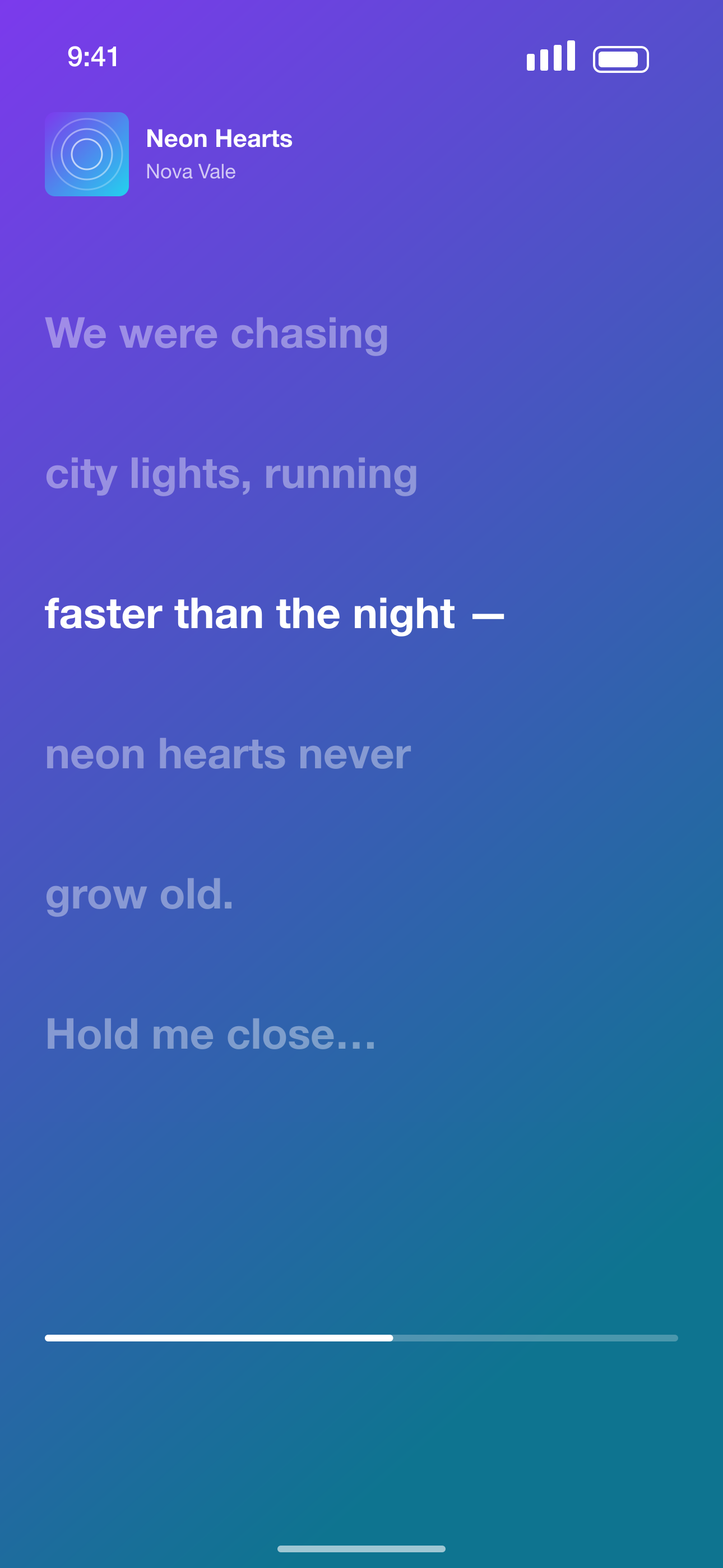
After · a complete store-ready set
From Xcode simulator to App Store in four steps
- 1
Capture in the simulator
Run your app in the iOS Simulator and press ⌘S to save each screen. Any iPhone model works.
- 2
Upload to the iOS screenshot maker
Drop the PNGs in. They're placed into realistic device frames automatically.
- 3
Style your set
Pick a template, or let AI choose. Reorder slides so your best screen leads.
- 4
Export every size
Get the 6.9" iPhone set Apple requires, plus iPad and older sizes if you need them.
Made for iOS apps
iPhone and iPad frames
Modern device frames with Dynamic Island, or frameless screens for a cleaner look.
One design, every size
Design once at 6.7"; exports are resized to 6.9", 6.5" and 5.5" automatically.
Make an iPad version
Turn your iPhone set into an iPad set in one click, then swap in iPad screenshots.
Store-style preview
Preview your set in an App Store-style search result and product page before you upload.
Screenshot sizes we export
Exact pixel sizes, PNG, sRGB and no transparency — the formats App Store Connect and Google Play Console accept.
| Device | Size | Pixels (portrait) | Store |
|---|---|---|---|
| iPhone 16/17 Pro Max | iPhone 6.9"REQUIRED | 1320 × 2868 | App Store |
| iPhone 15 Plus / 14 Pro Max | iPhone 6.7" | 1290 × 2796 | App Store |
| iPhone 11 Pro Max / XS Max | iPhone 6.5" | 1284 × 2778 | App Store |
| iPhone XS Max | iPhone 6.5" (legacy) | 1242 × 2688 | App Store |
| iPhone 8 Plus | iPhone 5.5" | 1242 × 2208 | App Store |
| iPad Pro 13" (M4) / iPad Air 13" | iPad 13"REQUIRED | 2064 × 2752 | App Store |
| iPad Pro 12.9" (2nd–6th gen) | iPad 12.9" | 2048 × 2732 | App Store |
| iPad Pro 11" / iPad Air / iPad | iPad 11" | 1668 × 2388 | App Store |
iOS Screenshot Maker FAQ
How do I take screenshots in the iOS Simulator?
Open your app in the Simulator and press ⌘S (File → Save Screen). The PNG saves to your desktop at the device's full resolution.
Does the iOS screenshot maker support iPad?
Yes — 13", 12.9" and 11" iPad sizes, with iPad frames. Use iPad screenshots for iPad sets; Apple rejects phone screens in iPad listings.
Can I use real device screenshots?
Yes. Screenshots from any iPhone work — they're scaled to fit the frame and exported at the sizes Apple needs.
Is my app data private?
Yes. Screenshots are kept in private storage locked to your account (or only in your browser without an account). AI features send reduced-size copies to OpenAI's API only to write your copy — never to train AI models.
More screenshot tools
Ready to make your screenshots?
Upload your screens and get a complete, store-ready set in minutes.
Create my screenshots